Lau-PyDE

A simple and lightweight Python Development Environment.

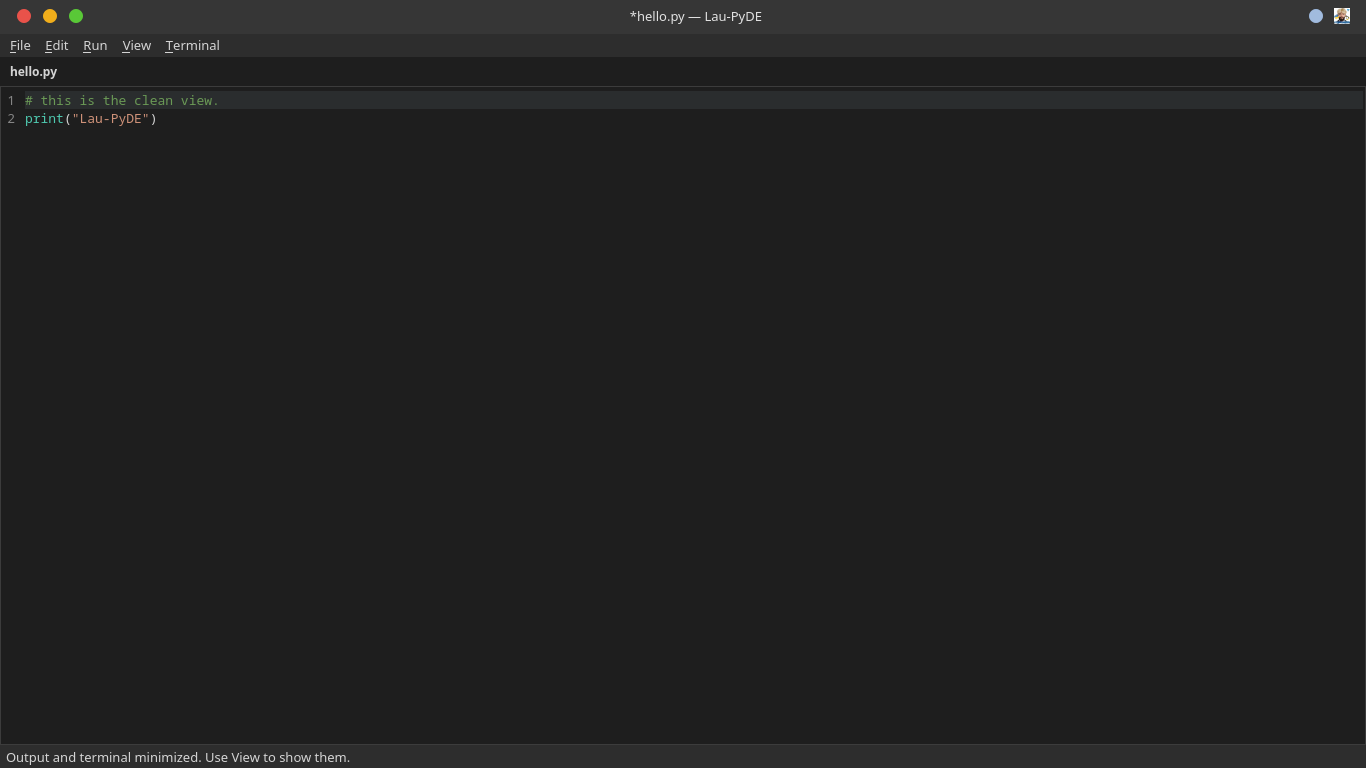
Launch the IDE → Code → Run

Lau-PyDE is a lightweight, Python-focused development environment designed for developers who want a simple workflow without the resource usage and complexity of a large IDE.

Lightweight

~121 MB RAM usage

Python-Focused

Designed for Python developers

Fast Startup

~4.7 seconds

Linux-Friendly

Optimized for Linux

Simple Workflow

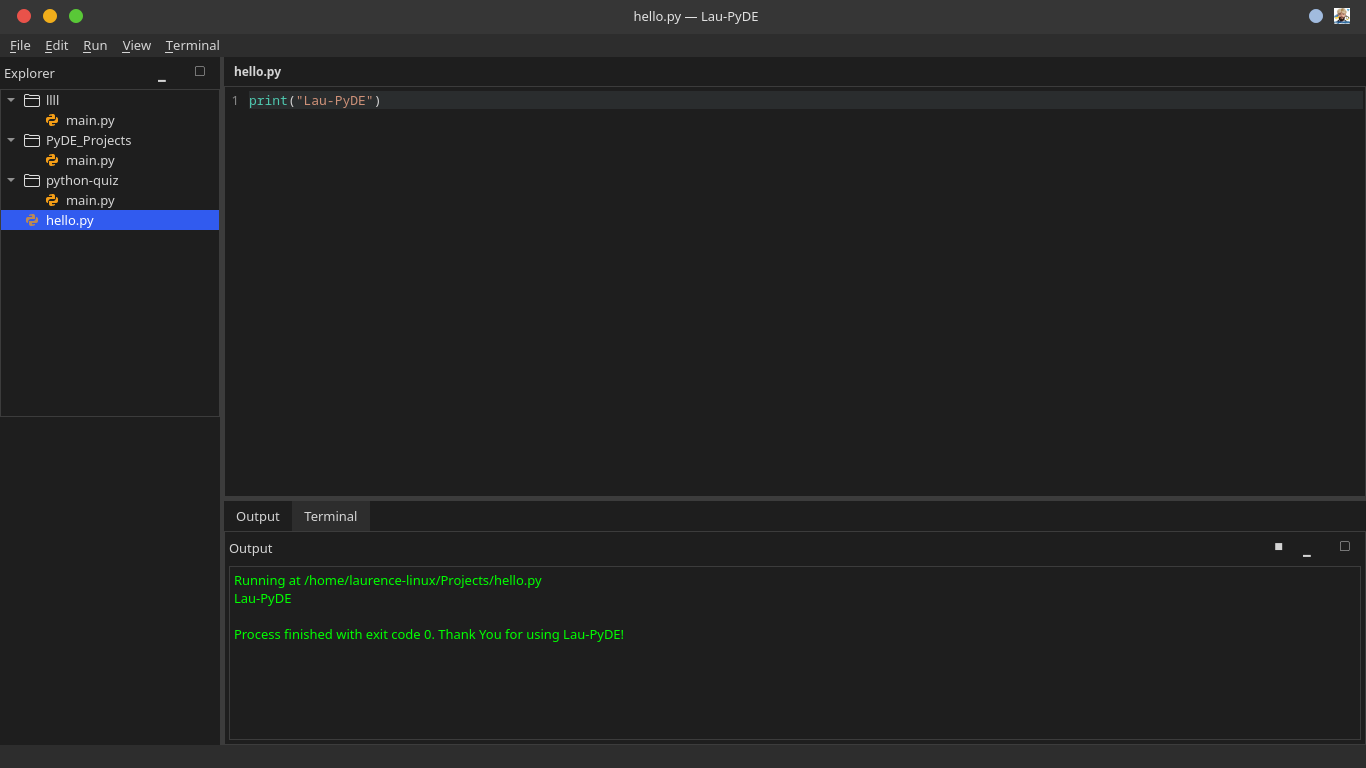
Write → Run → Output

Minimal Dependencies

Install once, run anywhere

About Lau-PyDE

What is Lau-PyDE?

Lau-PyDE stands for Python Development Environment. I created a simple and lightweight IDE focused specifically on Python development. It's not meant to be another PyCharm or VS Code clone.

My goal was to provide enough features to comfortably:

Write → Check → Run → Output → Fix → Run again

Why I Created Lau-PyDE

I was required to use PyCharm for school, and I noticed something troubling: on my 8 GB RAM laptop, PyCharm consumed around 2 GB of RAM just to write Python code. That's half my system memory for a text editor. I thought there had to be a better way.

So I built Lau-PyDE to focus on what matters:

  • Low RAM usage
  • Fast startup
  • Python development
  • Linux compatibility
  • Straightforward UI
  • Minimal dependencies
  • User control

My Design Philosophy

"Enough features to comfortably write Python without making the IDE heavy."

I intentionally decided NOT to compete feature-for-feature with PyCharm, VS Code, or IntelliJ-style IDEs. Instead, I prefer simple and useful features over massive systems like full IntelliSense, AI autocomplete, plugin marketplaces, or complex language servers.

My Motto: "Launch the IDE → Code → Run"

My Packaging Philosophy: "Install once → Run everywhere"

Linux Compatibility

I primarily developed and tested Lau-PyDE on Linux, so it's most compatible with Linux, especially my Linux workflow. I focused on Arch Linux during development.

Don't expect universal Linux compatibility across all distributions. My focus is on developer workflow compatibility, not hitting every Linux variant.

Performance Comparison

Important: These are my personal benchmark results on my hardware and environment (Arch Linux) using the same large project. These are NOT universal benchmarks and will vary based on system specs, Python version, and project complexity.

Metric Lau-PyDE PyCharm
RAM (RSS) ~121.6 MiB ~1,264.7 MiB
Startup Time 4.72 seconds 25.52 seconds
RAM (Alternative) ~121.0 MiB ~1,271.7 MiB

Result: In this test, PyCharm used roughly 10.5× more RAM. Lau-PyDE used approximately 90.5% less RAM.

What I've Built

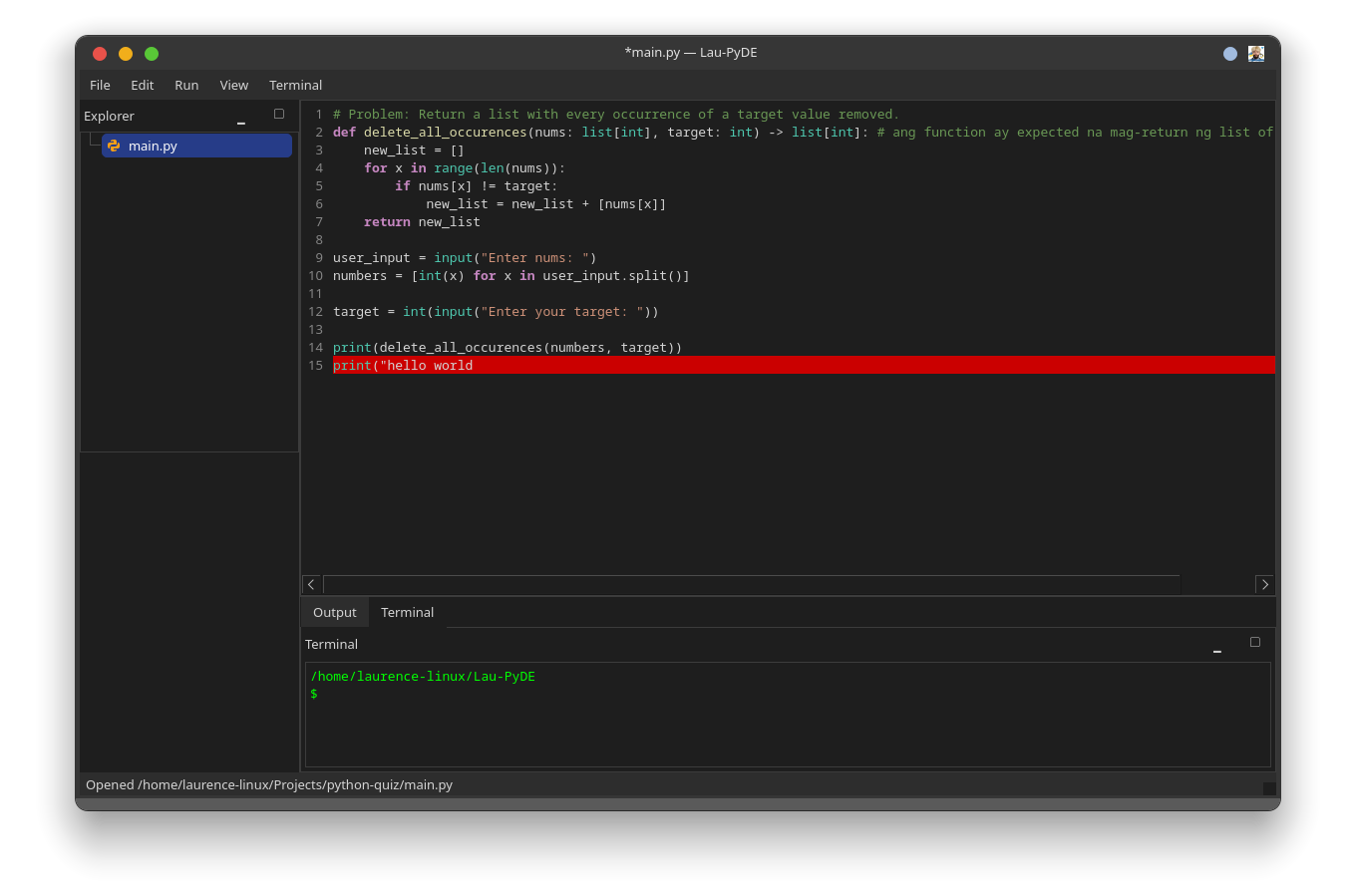
  • Python editor with syntax highlighting
  • Basic diagnostics
  • Lightweight typo/name suggestions
  • Auto indentation
  • Line numbers
  • Current-line highlighting
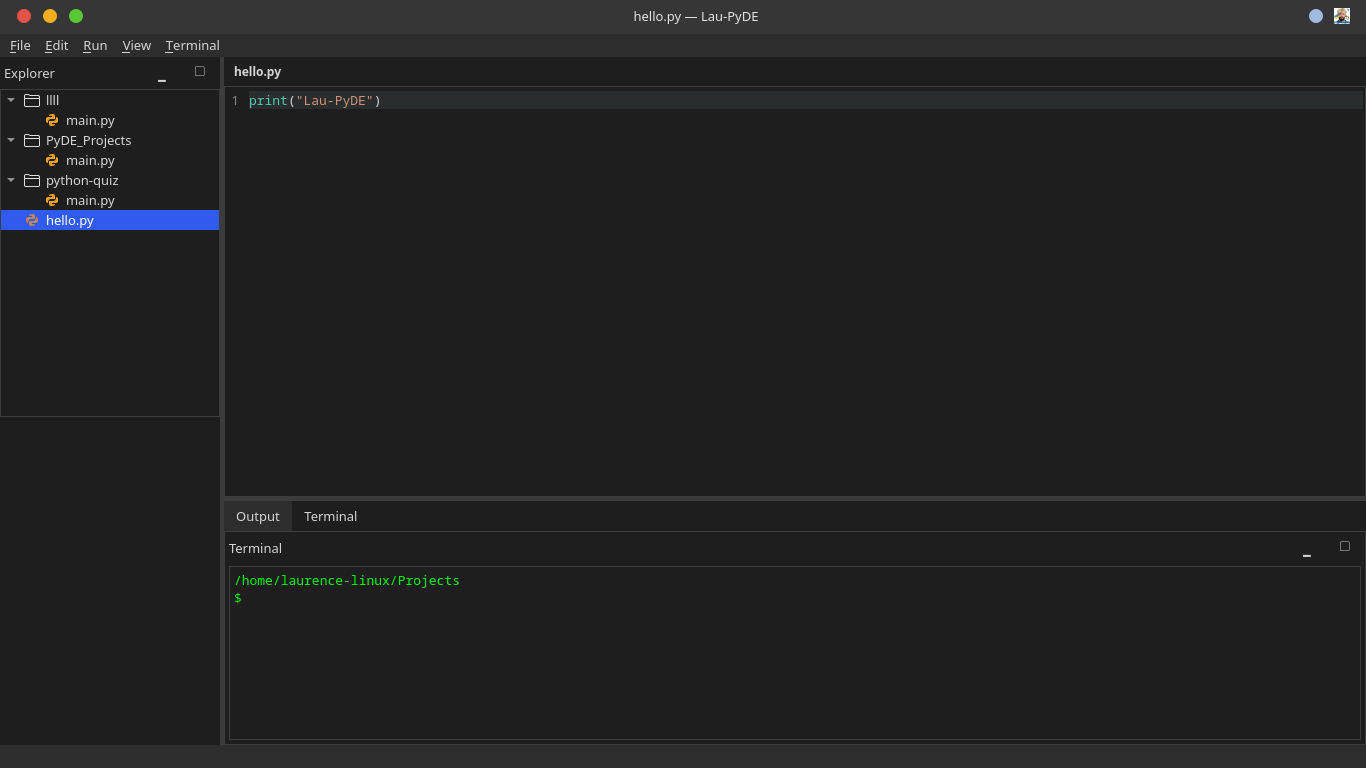
  • File explorer with project folders
  • Recent project restoration
  • Run and stop Python files
  • input() support
  • Integrated terminal
  • Save / Save As
  • Dark theme
  • Search functionality

The Logo Story

The Lau-PyDE logo represents my development journey and combines ideas connected to:

  • Linux
  • Arch Linux
  • Python
  • My development environment
  • The long development grind
  • The music I listened to during development

The white-haired/bearded character is NOT intended to represent Linus Torvalds. The white hair and beard represent the long development grind and the exaggerated idea of "getting old from overworking." The Luna/Reanne Borela imagery represents my personal connection to the song "Luna," which was my companion during development.
Download Lau-PyDE

Lau-PyDE for Windows

.exe installer

Download Now

After Installation

Lau-PyDE requires a Python interpreter to run Python programs. Download and install Python from the official website:

Get Python

Lau-PyDE for Linux

Source code and instructions

Linux support is currently not available as a packaged download. While I primarily developed and tested Lau-PyDE on Linux and it's most compatible with my Linux workflow, a packaged Linux download isn't currently provided on this website.

Visit the GitHub repository for the latest Linux installation instructions:

GitHub Repository

Help & Documentation

Installing Lau-PyDE

Windows Steps:

  1. Download the .exe installer
  2. Run the installer
  3. Install Lau-PyDE
  4. Install Python from the official Python website if Python is not already installed
  5. Launch Lau-PyDE
  6. Create or open a Python project
  7. Write Python code
  8. Run the file

Running Python

Lau-PyDE runs Python files using the installed Python interpreter. If Python cannot be found, verify that Python is installed correctly and available to the system.

Common Problems

Lau-PyDE does not start

Try restarting your computer and relaunching the application. Check that your system meets the minimum requirements. If the issue persists, check the GitHub repository for known issues.

Python is not detected

Verify that Python is installed from the official Python website. Ensure the Python executable is in your system PATH. Try reinstalling Python with "Add Python to PATH" enabled during installation.

Python file does not run

Check that the file is saved correctly. Verify the file has the .py extension. Ensure Python is installed and accessible. Check the terminal output for error messages.

Terminal command does not work

Try running the command in your system terminal to verify it works outside of Lau-PyDE. Check that the command exists and is in your system PATH.

Application crashes

Note the error message and steps that led to the crash. Check if you're using the latest version. Report the issue on GitHub with details.

Installation problems

Ensure you have Administrator permissions on Windows. Try disabling antivirus temporarily. Check disk space is available. Try downloading the installer again.

Reporting Bugs

If you encounter a bug:

  1. Check the GitHub repository
  2. Check existing issues
  3. Update to the latest available version
  4. If the problem persists, report the issue with:
    • Operating system and version
    • Lau-PyDE version
    • Python version
    • Error message
    • Steps to reproduce
Report a Bug

Updates & Releases

Visit the GitHub repository for updates, releases, bug fixes, and development changes:

GitHub Repository

Connect With Me

Let's connect and stay updated: